
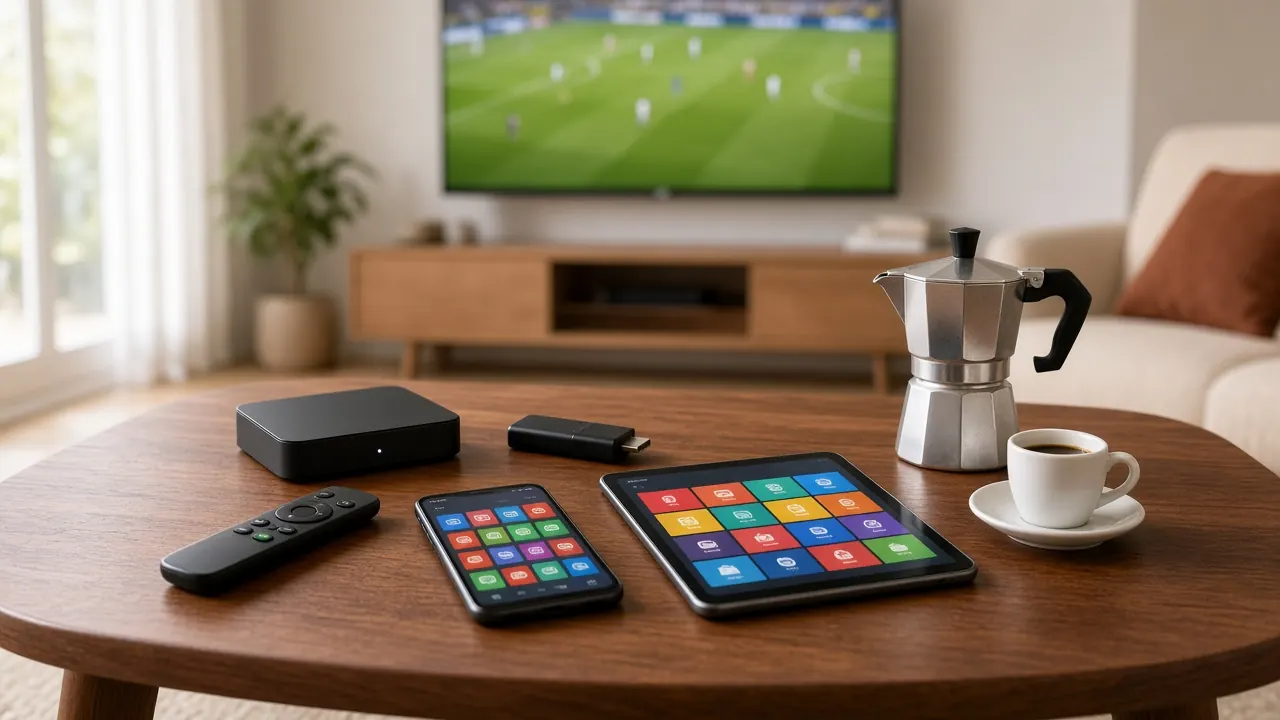
Italian IPTV on an Android box: setup guide
An Android box is the favorite choice for Italian IPTV if you want speed, stability and the freedom to pick the best player. Here’s the complete setup guide.
An Android box is a small device that plugs into your TV’s HDMI port and turns it into a full Smart TV. Compared with the apps built into many TVs, it’s usually faster, gets updates for longer and offers the widest choice of IPTV players.
Its biggest advantage is the Ethernet port: plug the box into your router with a cable and you get the most stable picture possible — ideal for live soccer and high-quality streams.
Android boxes are also easy to move from room to room or take to a vacation home, and they keep working even when your TV’s own apps stop receiving updates. If you’re still choosing one, look for at least 2 GB of RAM, an Ethernet port and H.265 support — and buy from a mainstream retailer so you get proper updates and a warranty.
Time needed: about 10 minutes
What you need
- An Android box with at least 2 GB of RAM (4 GB is better) and H.265 decoding.
- A TV with a free HDMI port.
- An Ethernet cable to your router, or strong 5 GHz Wi-Fi.
- An account for the box’s app store and the login we send on WhatsApp.
Step-by-step setup
-
Connect the box to the TV
Plug the box into a free HDMI port and into power, then switch the TV to that HDMI input.
-
Connect it to your network
Run an Ethernet cable to the router for the best results, or join your 5 GHz Wi-Fi.
-
Finish the first-time setup
Follow the on-screen setup: language, time zone and app store sign-in. Then install any available system updates.
-
Install the IPTV player
Open the app store, search for the player we recommended and install it. Always use the box’s official store.
-
Add a new user
Open the app and choose “Add user” or “Add playlist,” then pick the Xtream Codes login.
-
Enter your login
Name the playlist (for example “Italian TV”), then enter the server address, username and password. Check capitals and the port number.
-
Wait for the content to load
Within a minute or two, live TV, the guide, movies and series appear in their own sections.
-
Tune the player settings
Select hardware decoding and, if offered, a slightly larger buffer: channels take a moment longer to start but play more smoothly.
-
Create your favorites
Add your most-watched channels to favorites and set parental controls if kids use the TV.
Tips for a better picture
- Keep the box somewhere ventilated — overheating slows any device.
- Uninstall apps you don’t use to leave memory for the IPTV player.
- Restart the box once a week to clear its memory.
- Set the box’s output resolution to match your TV (Full HD or 4K).
Common problems and fixes
| Problem | Likely cause | Fix |
|---|---|---|
| Slow channel changes | Full memory or underpowered box | Clear the app cache, close background apps, consider a box with more RAM |
| Choppy video | Decoder setting | Switch between hardware and software decoding in the player |
| No TV guide | Guide not loaded yet | Refresh the guide in the app settings and wait a few minutes |
| Audio out of sync | Box audio settings | Turn off audio passthrough or adjust the audio delay in the player |
Not sure your connection is fast enough? See the speed advice in our setup hub or ask us on WhatsApp.
Frequently asked questions
Which Android box is best for IPTV?
A recent model with at least 2 GB of RAM (ideally 4), Ethernet, Wi-Fi 5 or 6 and H.265 support. Avoid cheap boxes with old software and no updates.
Box or Smart TV?
A box is usually faster and updated for longer; a Smart TV app is simpler because there’s nothing extra to plug in. If your TV feels slow, add a box.
Should I buy a “fully loaded” box?
We don’t recommend it: these boxes often run outdated, insecure software with no support. A standard box with the app we recommend is safer.

Ready to watch Italian TV?
Choose a plan, message us on WhatsApp and receive your login. From €5.83/month, no contract.
Quick activation · No contract · Support every day